How
to
Use
Your
Mastercard
Gift
Card
Simple, fast, and ready to spend in seconds.
STEP 1
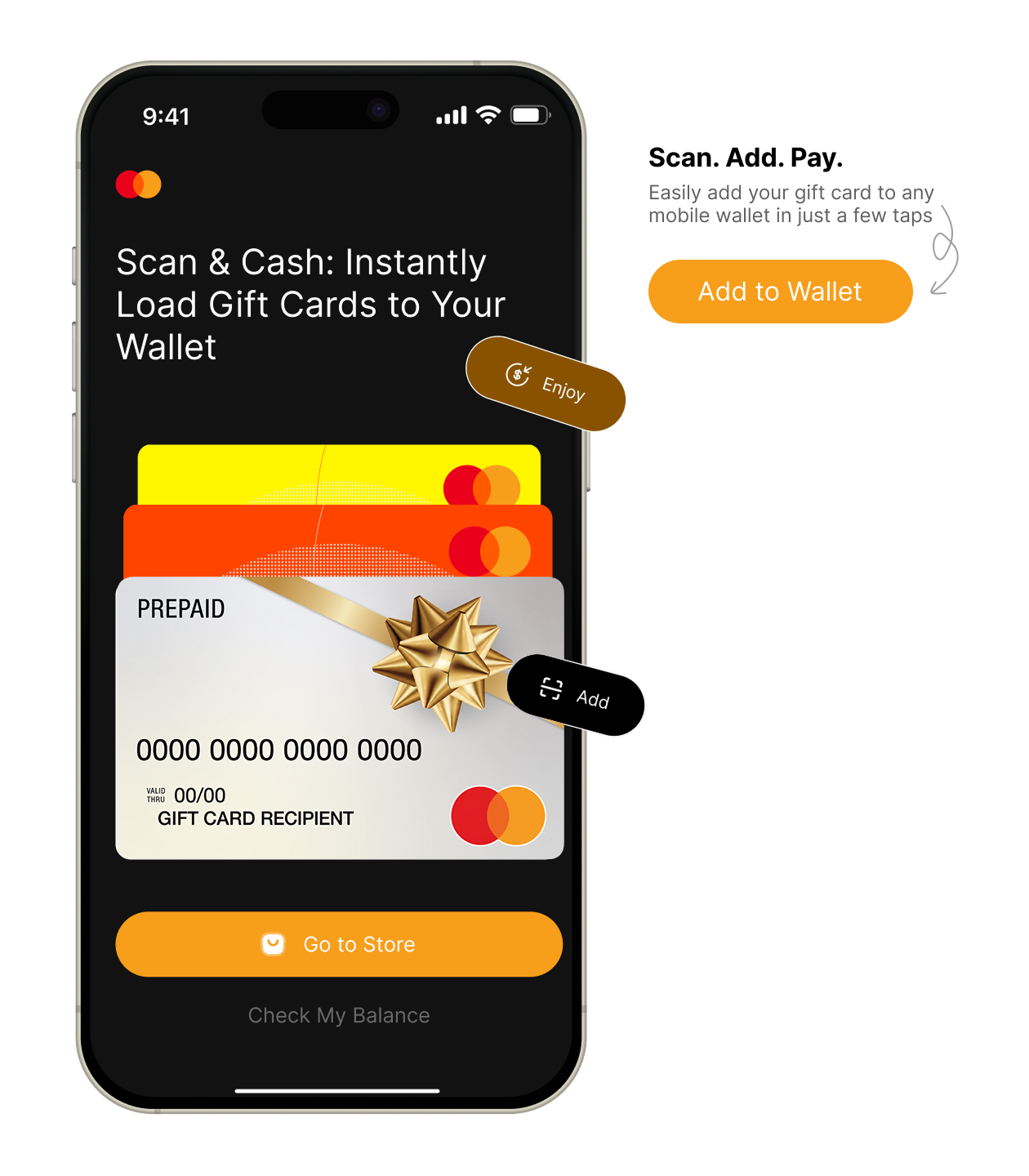
Add to Wallet
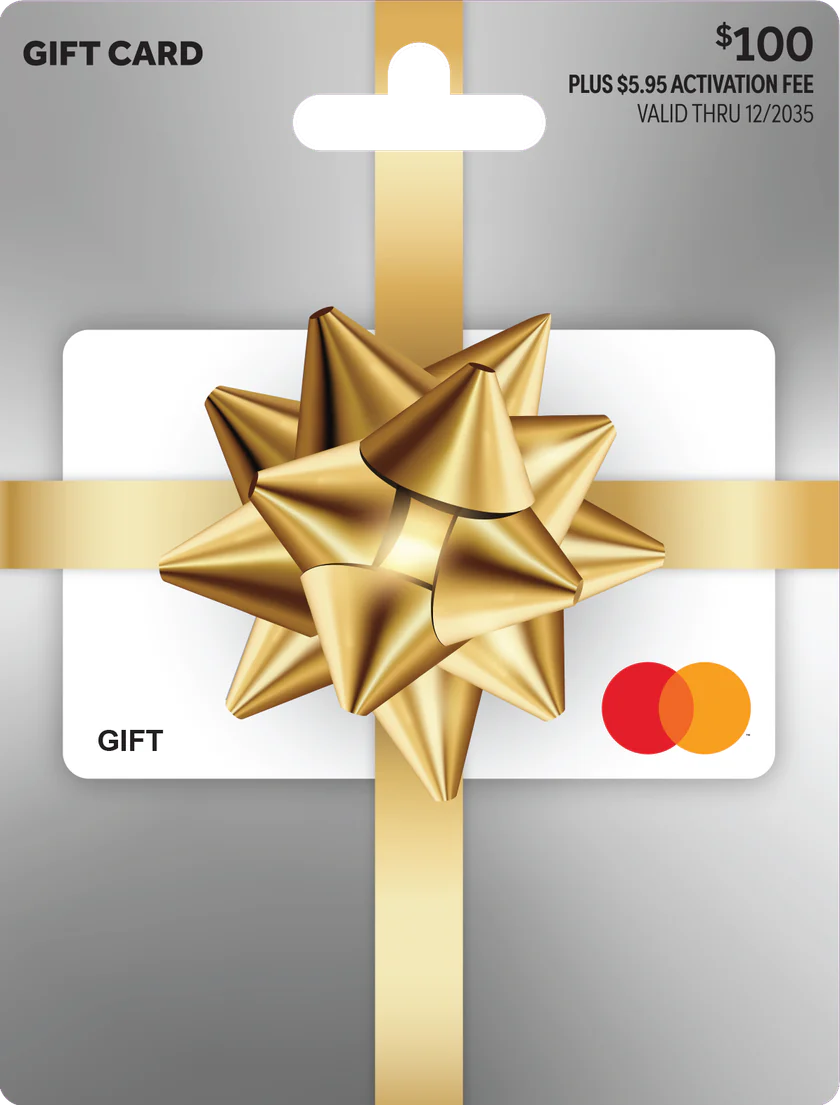
Add your MasterCard gift card to your Apple, Google or Samsung mobile wallet and purchase your favorite item at terminals that accept contactless payments.
To add your MasterCard gift card to your mobile wallet:
- Go to the Wallet app on your mobile device
- Click on the plus icon
- Select Debit or Credit card on the next screen
- Enter your card details
- Your card has now been added to your mobile wallet
STEP 2
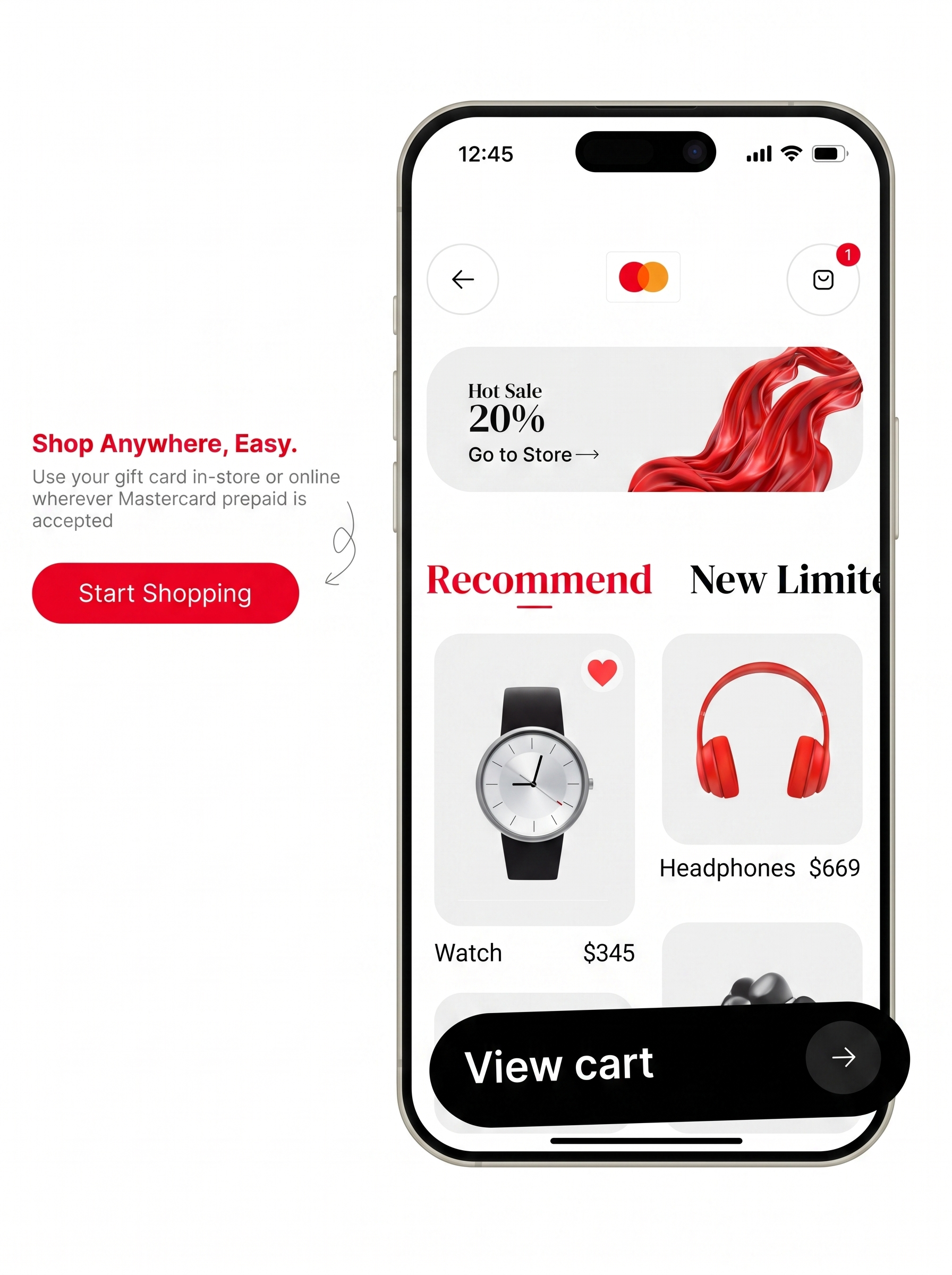
In-store & Online Shopping
In-store Shopping: Present your Mastercard Gift Card anywhere Mastercard is accepted*. Swipe your card, select Credit if prompted, and enter your PIN (if required).
If your purchase exceeds your card balance, you can pay the remaining amount using cash or another accepted payment method at the store.
Split payments are generally not supported for online transactions.
Online Shopping: Mastercard Gift Cards can be used for online purchases wherever Mastercard is accepted*.
Enter your card details (card number, expiry date, and CVV) in the debit/credit card section at checkout.
Important:
Important:
- Make sure your card balance covers the full purchase amount
- Most online merchants don’t support split payments
- Use your card in the debit/credit card field, not the “gift card” option
Some merchants may choose not to accept prepaid gift cards, both online and in-store. Acceptance is at the discretion of the merchant. Certain online transactions that require additional verification (such as 3D Secure) may not be supported, and the payment could be declined when using a prepaid card issued on the Mastercard network.
FAST, SIMPLE, AND CONTACTLESS
Freedom to pay, your way.
Sold at stores you trust.
A simple, secure, and convenient way to purchase your gift card in-store at trusted locations.